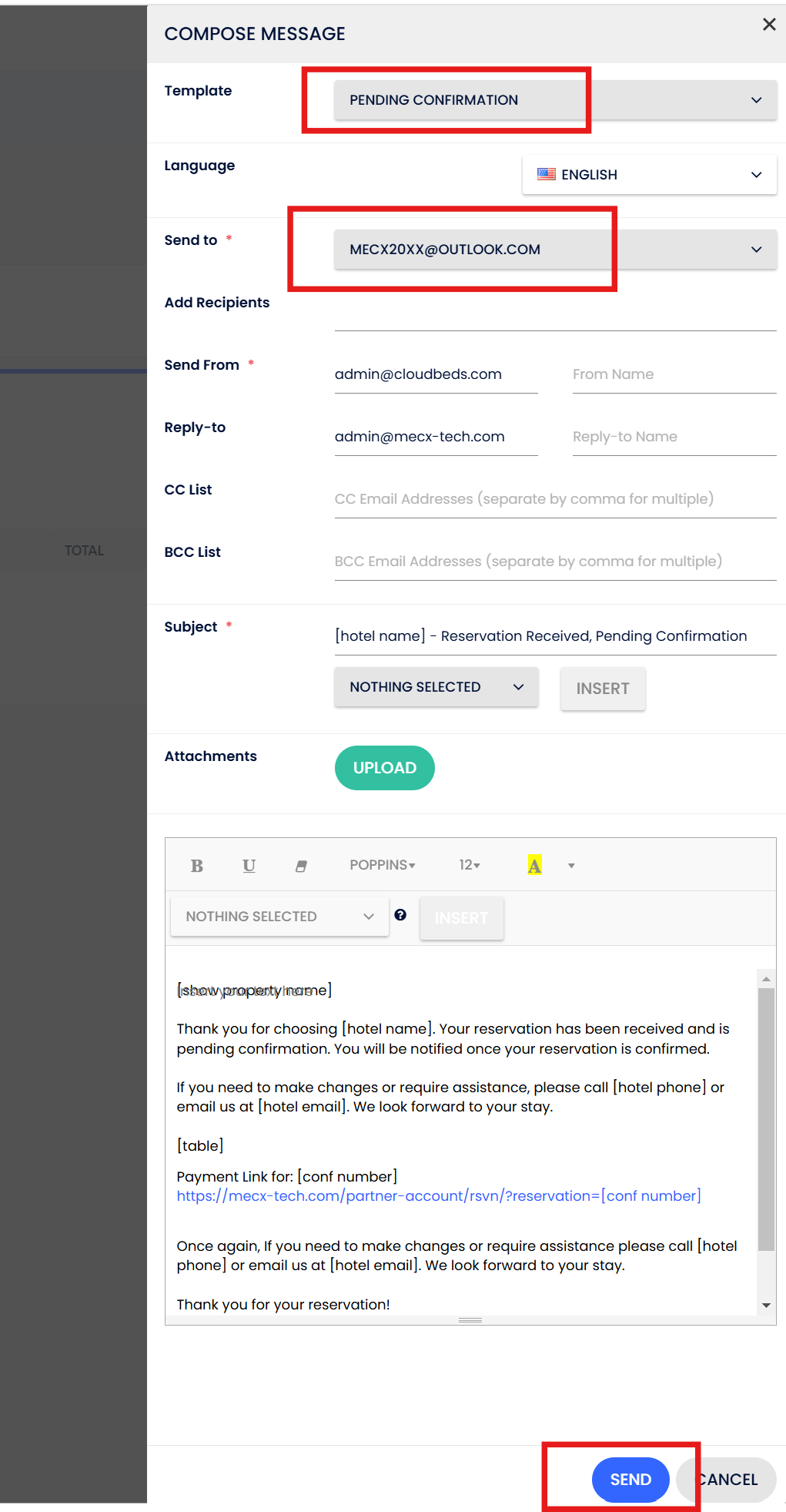
To go live, you need to configure CloudBeds settings as followed details.
- Setup “Policies”: “Deposit“. You can configure any deposit you need but it could not be “Do not collect deposit payment…”.

2. Reservation status should be “Confirmation Pending” because new reservation must be “Pending Confirmation” then goes “Confirmed” after payment has been made. You can find more information about ‘Polices’ [here].

3. We are going to disable credit card form in Cloudbeds and switch to use 3rd-party credit card form. Go to Setup “Payment Options” – disable “Credit Card” in “Booking Engine”.

4. Due to 3rd-party payment gateway integration through “Bank Transfer” option, we need to enable “Bank Transfer” in “Booking Engine”.

5. Setup “Payment Options” – disable “PayPal” because we can choose only one payment option.

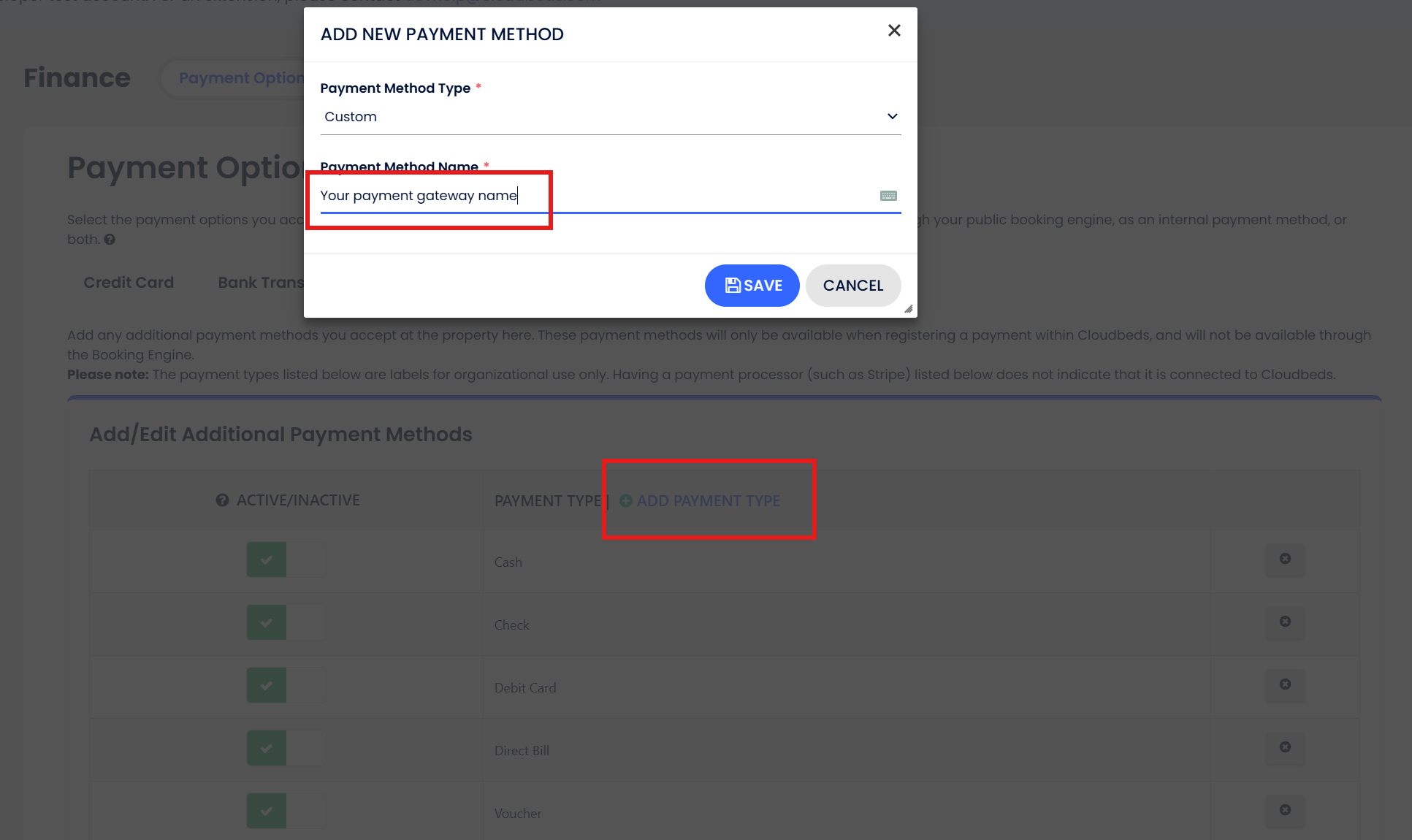
6. “ADD PAYMENT TYPE” then enter your payment gateway name.
7. You can setup “Customize the Booking Engine”: insert “Custom Meta Tags” and “Javascript” value from script below.
Modern Booking Engine – [Custom Meta Tags]
<link rel="stylesheet" href="https://mecx-tech-com.s3.ap-southeast-1.amazonaws.com/css/mecx.rsvn.v250104e.css" />
<style type="text/css">
:root {
  --mecx-label-icon: none;
}
</style>

Modern Booking Engine – [JavaScript] You can change Online Payments to your payment methods.
<script>
const GA4_Measurement_ID = ""; // Formatted as G-XXXXXXXXXX
const mecx_book_now = "Book Now";
const mecx_continue = "Continue";
const mecx_pay_now = "Pay Now";
const mecx_pay_name = "Online Payments";
const mecx_pay_instructions = "You will be redirected to payment page after click 'Pay Now'";
const mecx_pay_message = "Please wait a moment, we are now redirecting you to the payment process...";
const mecx_label_icon = "https://mecx-tech-com.s3.ap-southeast-1.amazonaws.com/wp-content/uploads/2026/02/20062238/tIDJtkbC-shopping-store-credit-card-150.svg";

document.documentElement.style.setProperty('--mecx-label-icon', `url('${mecx_label_icon}')`);
</script>
<script type="text/javascript" src="https://mecx-tech-com.s3.ap-southeast-1.amazonaws.com/js/mecx.rsvn.v2.4.min.js"></script>
8. Setup “Email Template”: Edit “Pending Confirmation” email template to include the payment link.

9. Setup “Email Template”: checked on “Autofill All Languages” incase that you want to change all at once.

10. Put you hotel name in the box below to generate your own hotel scripts.
Pending Confirmation Email Template: This includes a deposit payment link where the amount is calculated based on the reservation deposit.
Deposit Payment Link for [conf number]: https://mecx-tech.com/hotel-name/rsvn/[conf number]
Kindly note that we have blocked the rooms for your reservation and given within 1 hour of booking date thereof to settle. In case the online payment is not duly received within the specified validity, the reservation will be cancelled and automatically released. You are then required to re-book at the prevailing rates and availability.
Remaining Balance Payment Email Template: A new template need to be created for this final payments, with the amount calculated based on the total reservation balance.
Remaining Balance Payment Link for [conf number]: https://mecx-tech.com/hotel-name/rsvn/[conf number]-0
11. Setup “Email Template”: Insert the generated payment link.
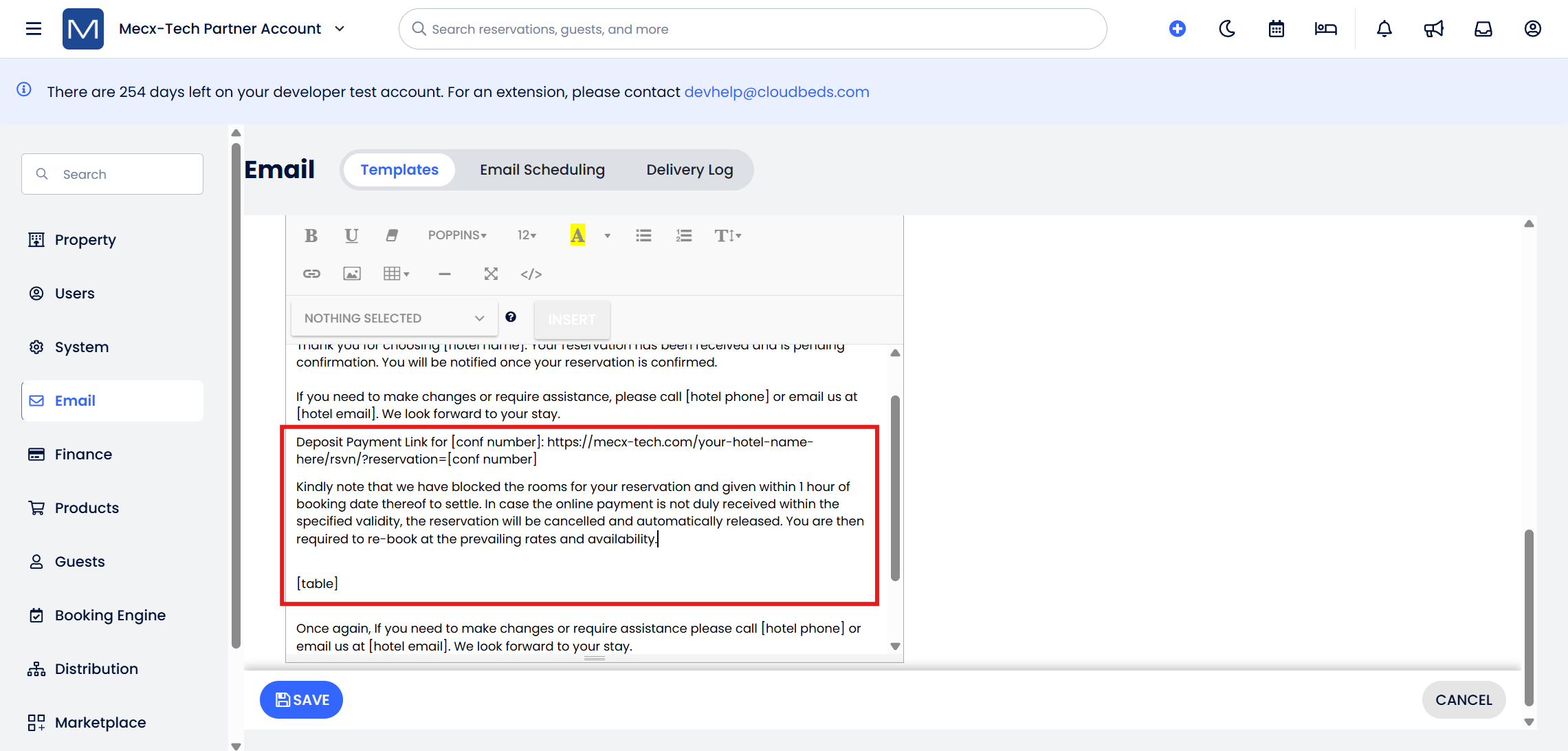
12. Make the payment link clickable by hilight the payment link then click “LINK” icon in the menu to insert the link into templete.


13. You can send the payment link to “Email”, “Phone”, or “Walk-In” reservations by “ACTIONS” menu the in the reservation.